![Mx and SD.png]](https://solutions.munetrix.com/hs-fs/hubfs/Mx%20and%20SD.png?height=40&name=Mx%20and%20SD.png)
⏰Estimated time: 1 minutes
Reset Password
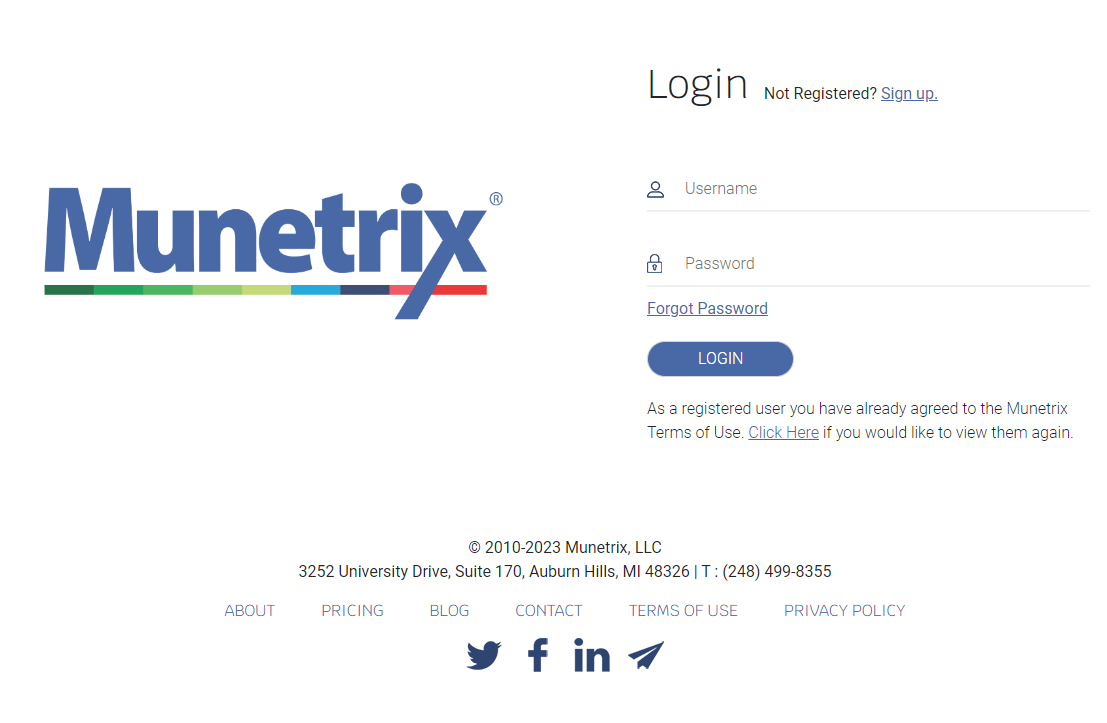
- Go to the Munetrix Login Page.
- Click Forgot Password.
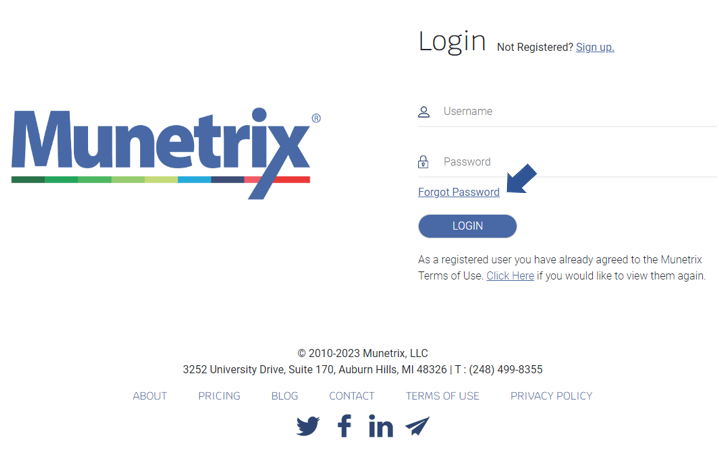
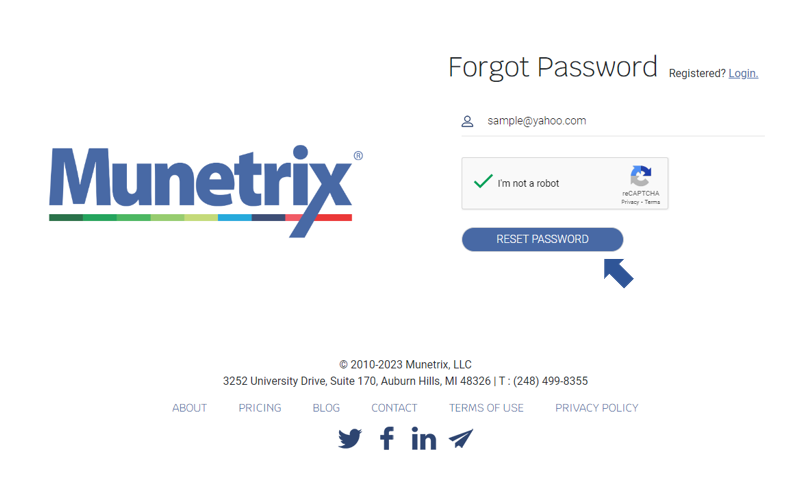
- Enter your username. (school email address)
- Check ☑️ the "I'm not a robot" box - reCAPTCHA.
- Click the Reset Password.
- You should receive an email with a link to reset your Munetrix® password within a few minutes.
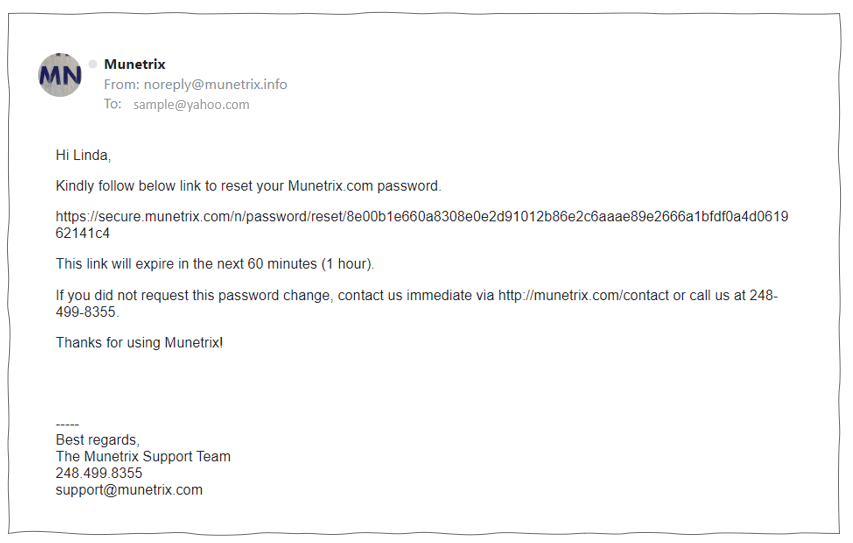
If you do not receive an email within a few minutes, please check your Spam and Junk folders in your email account.
- Copy and paste the link from your email into a new browser tab.
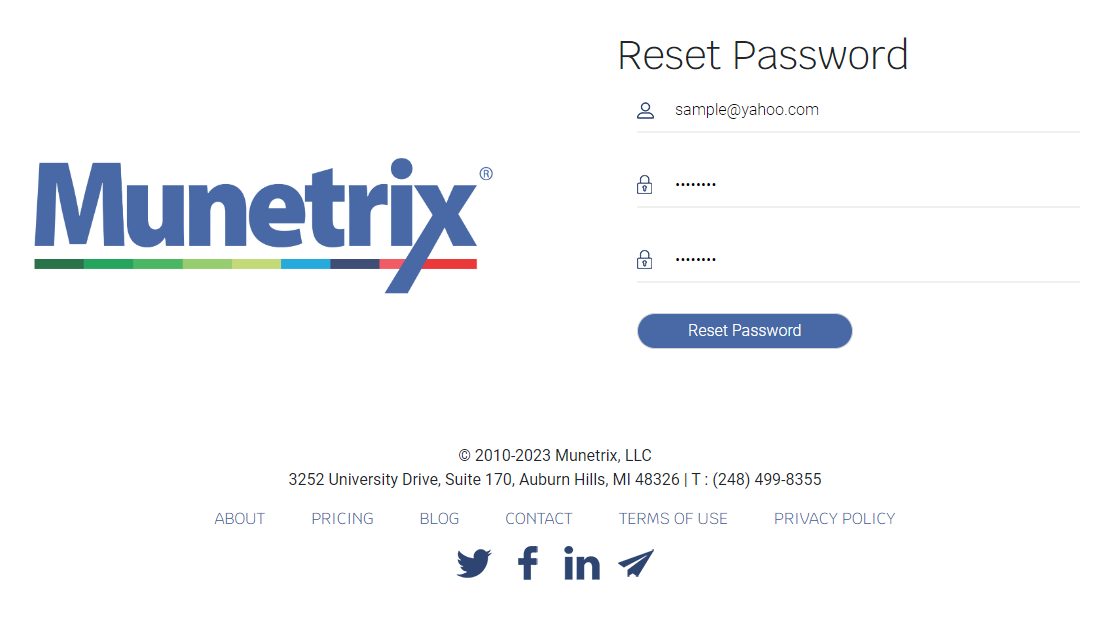
- Enter your username and new password twice.
- Click Reset Password.
- Once the login screen refreshes, login to your account with your username and new password.
If you experience issues with reseting your password, contact support@munetrix.com.